Open Command Prompt As Administrator
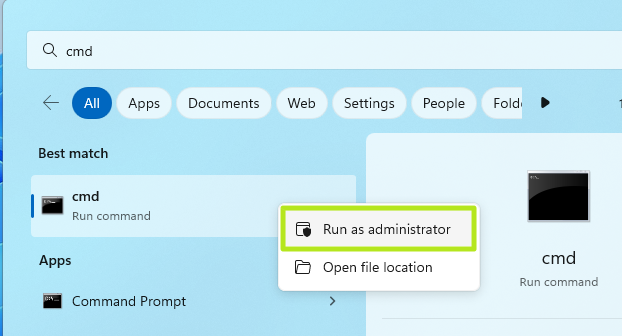
Click Start, type cmd or Command Prompt, then choose Run as administrator. If Windows asks for permission, click Yes.
The correct window is the black command window. On most machines it will show a prompt similar to C:\Windows\System32>.
Run The Battery Report Command
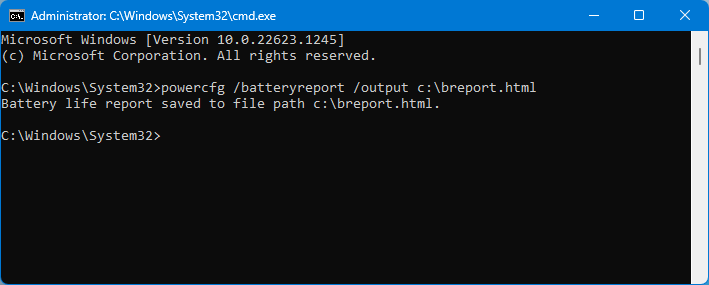
In the Command Prompt window, type:
Then press Enter. Windows will generate the battery health report and show the save message in the same CMD window.
Open The File From The Saved Path
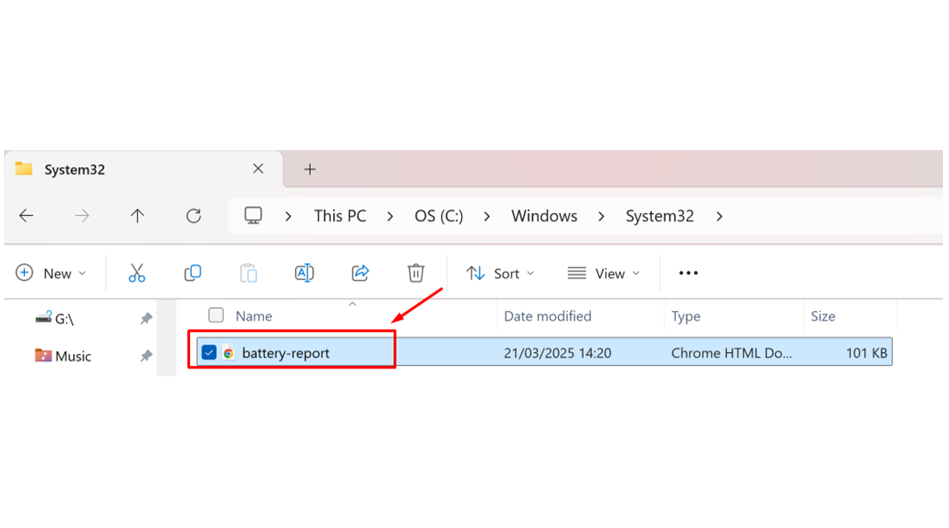
Because this guide uses the custom output command above, the report file will be saved here:
In normal Windows format, that means: C:\Users\YourWindowsName\Desktop\battery-report.html
Open File Explorer, go to the Desktop, then open battery-report.html with a web browser. If the machine tries to open it with Notepad or another text app, right-click the file and choose Open with, then select Edge, Chrome, or another browser.
Check The Most Important Battery Values
In the report, the most important items for a quick battery health check are:
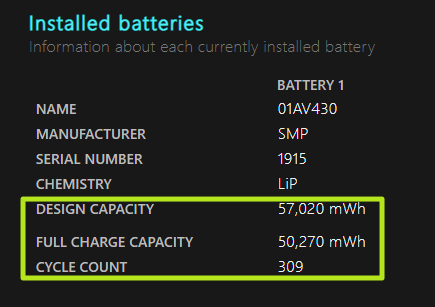
Installed batteries: look for Design capacity, Full charge capacity, and Cycle count.
Main reading rule: if Full charge capacity is much lower than Design capacity, the battery has degraded and may need replacement.
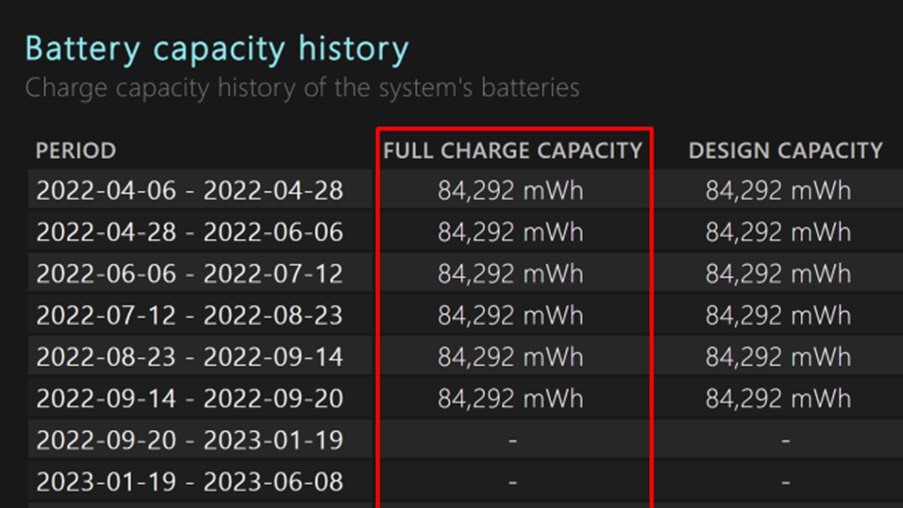
Check Battery Capacity History
Scroll further down to Battery capacity history. This section helps when you need a better picture of long-term battery wear, not just the current numbers.
Compare the newer entries against the original values. If the newer full charge capacity is consistently much lower, the battery health is poor.